Lesson-294
Translation made by MARION

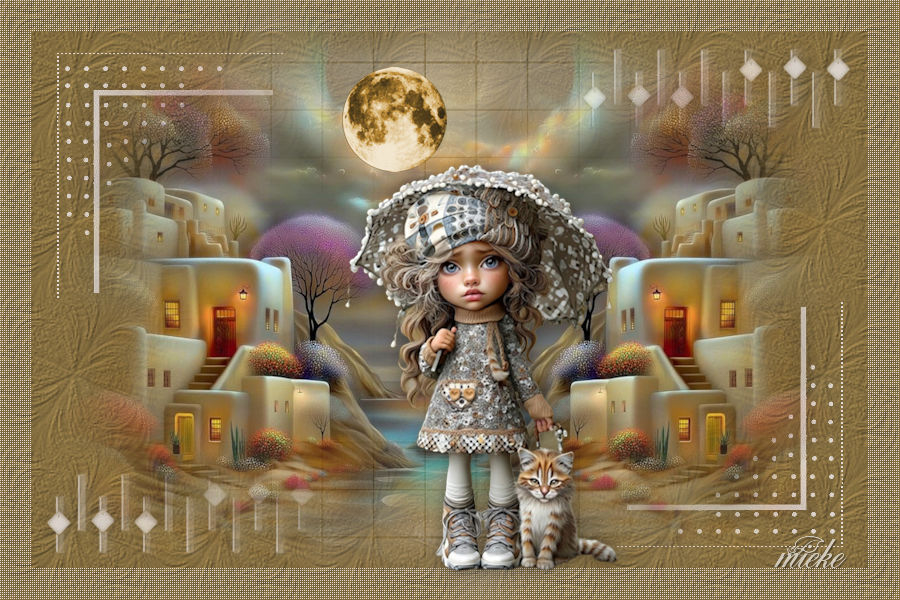
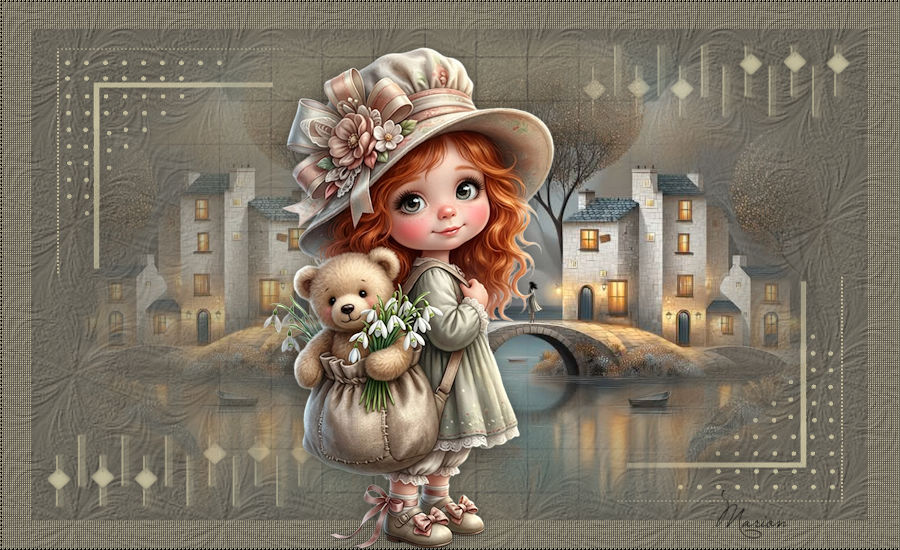
Material

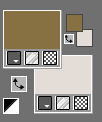
Colors
--- Foreground color #877041--- Background color #e3dcd7
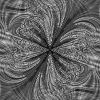
Texture--- JC_046.jpg ---Place in the textures folder of psp
1.
File---Open a new transparent image in this size
Width---900---Height---550 Pixels.
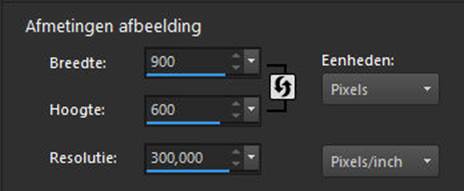
Fill the layer with the dark color
2.
Effects--- Texture effects – Texture use the settings below
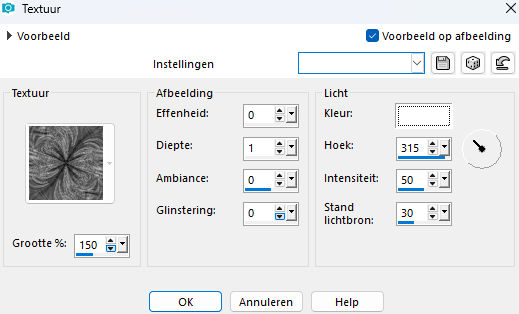
3.
Effects---Plugins---<I C Net Software> Filters in Unlimited 2.0--- AFS- (IMPORT)------sq border 2---29---16---230---the rest is standard
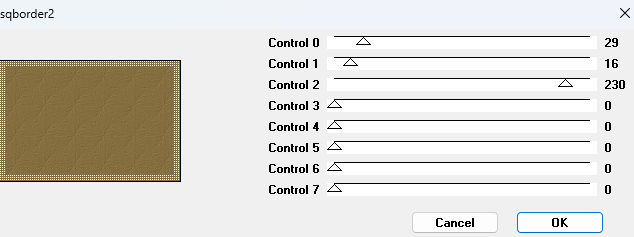
4.
Layers---New raster layer --- Fill with the light color
Open---mask-294-mb.jpg
Click on the minus sign in the top right corner.
5.
Layers---New mask layer---From image---Choose mask-294-mb.jpg
Source luminance checked
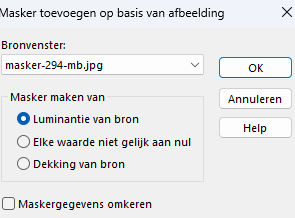
Layers---Merge---Merge Group.
6.
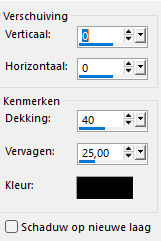
Effects---3D Effects---Drop Shadow---0-0-40-25- color black
5.
Open image--- EMA_Fantasy achtergrond_0112025.pspimage
Edit---Copy
Activate your work ---Edit - Paste as new layer
Image---Resize 80%---Resize all layers ---Not checked
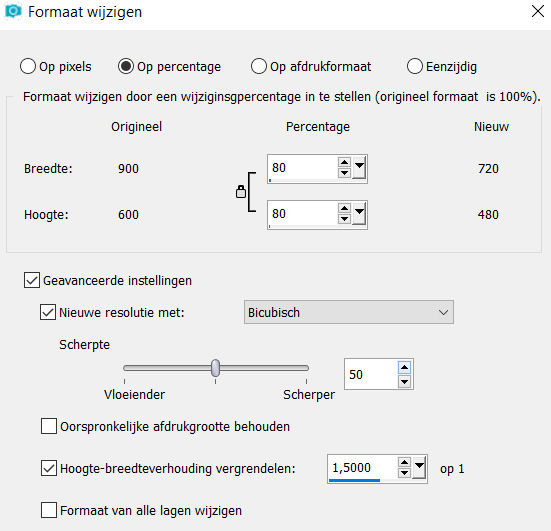
Repeat this one more time..
6.
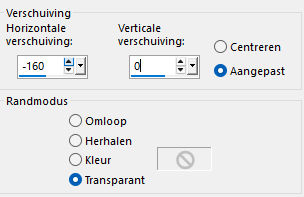
Effects---Image Effects ---Offset---min 160---0---Custom and Transparent---checked
7.
Layers---Duplicate
Image - Mirror - Mirror Horizontal (Image - Mirror in older versions of PSP)
8.
Open tube --- maan-2.pspimage
Edit---Copy
Activate your work ---Edit - Paste as new layer
Image---Resize 80%---Resize all layers ---Not checked
Repeat this one more time..
9.
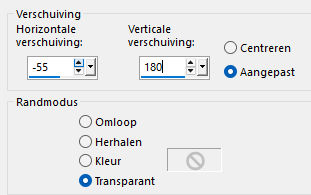
Effects---Image Effects---Offset---min 55---180--- Custom and Transparent---checked
 . .
10.
Layers---Properties---Opacity 40%.
11.
Open tube--- pinterest-ai-17548.pspimage
Edit---Copy
Activate your work ---Edit - Paste as new layer
Place the tube at your discretion
12.
Drop Shadow of your choise
Layers --- Merge ---Merge All ( flatten)
Add your watermark on a new layer
Save as JPG.
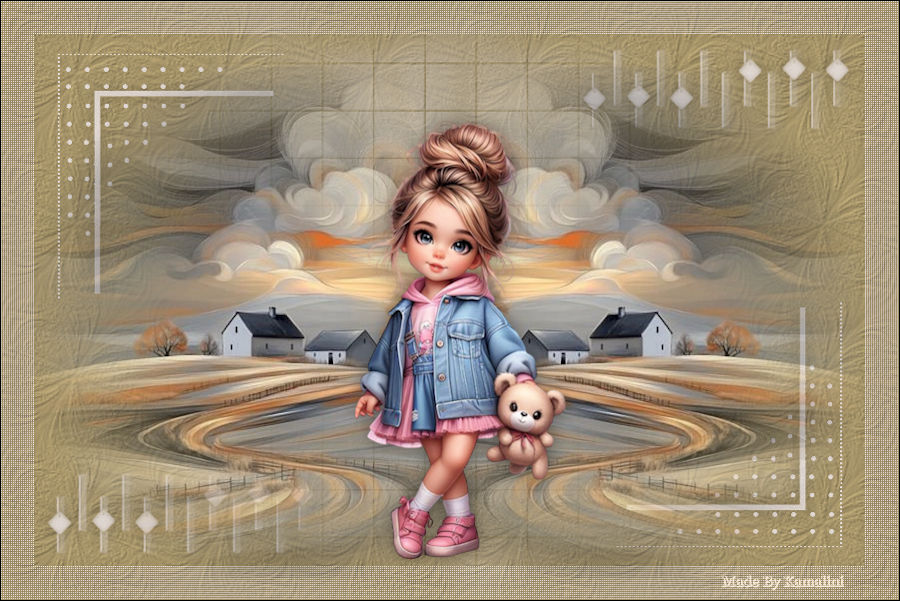
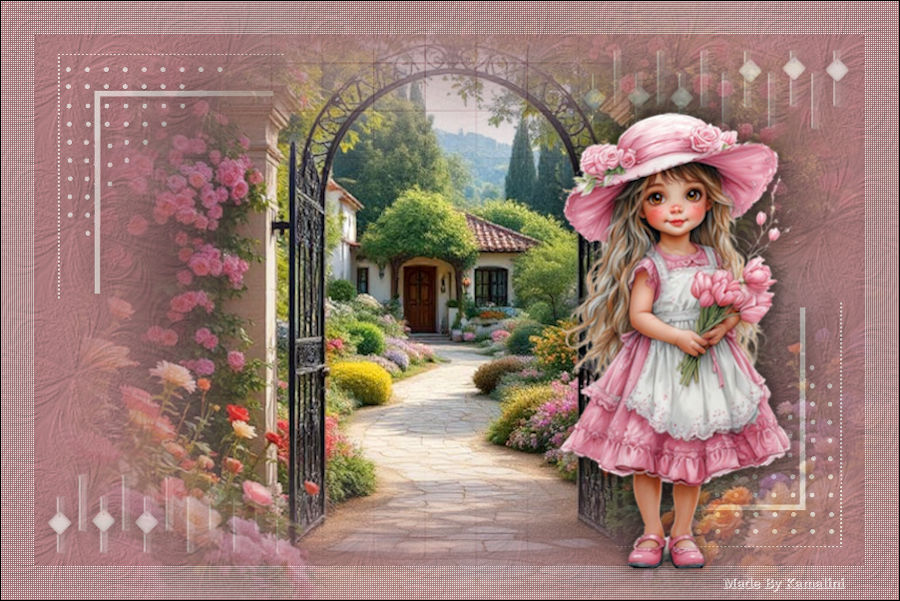
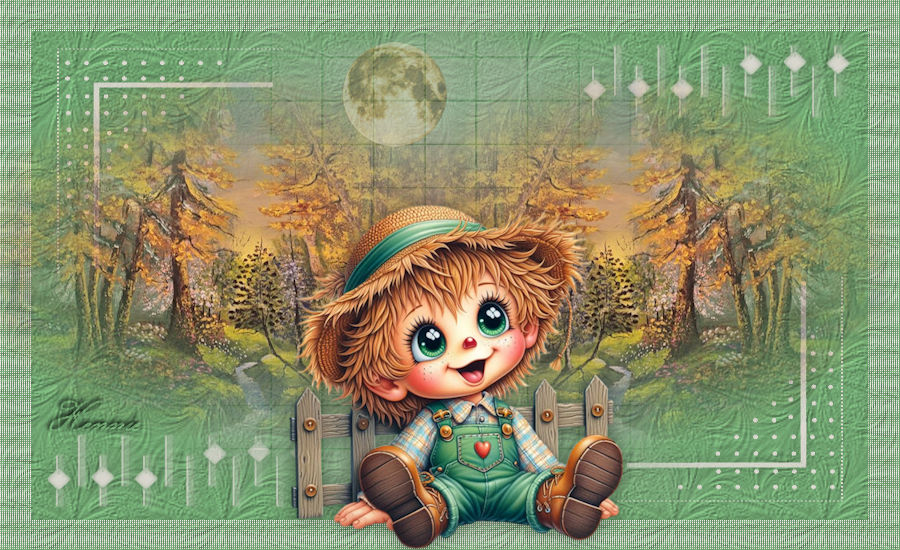
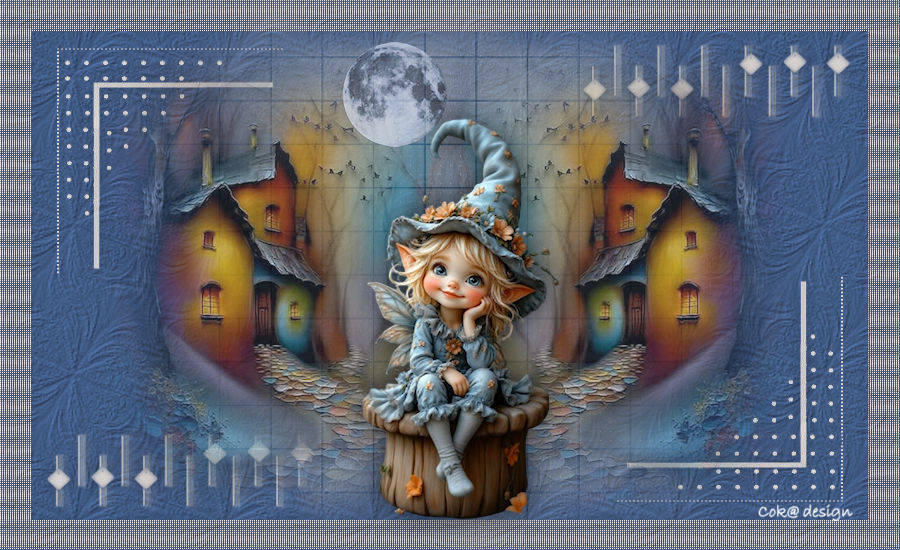
Voorbeeld gemaakt door Kamalini Marion Corry Hennie

|